Share and collaborate
Invite teammates, share a board, and keep feedback next to the work.
1. Open sharing
Open a board and click Share in the top bar.
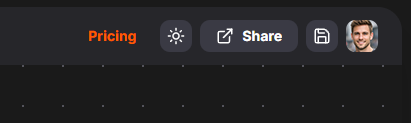
The Share this board dialog will open, where you can manage board sharing.
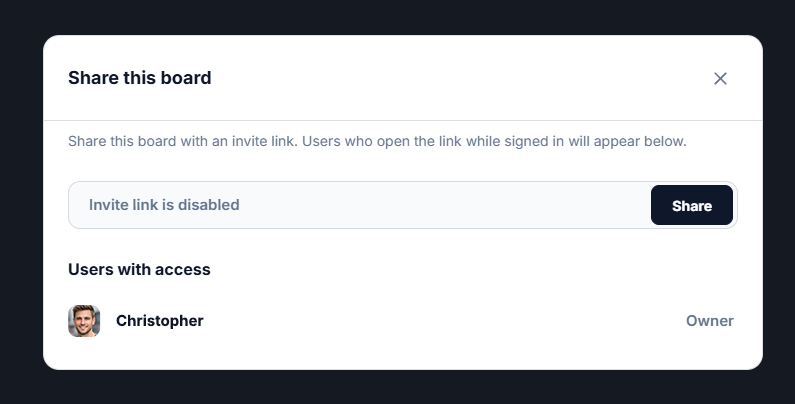
2. Create and send an invite link
In the Share this board dialog, click Share to create a Viewer link. Click Copy invite link and send it to your teammates. Up to 8 Viewers can access the board.
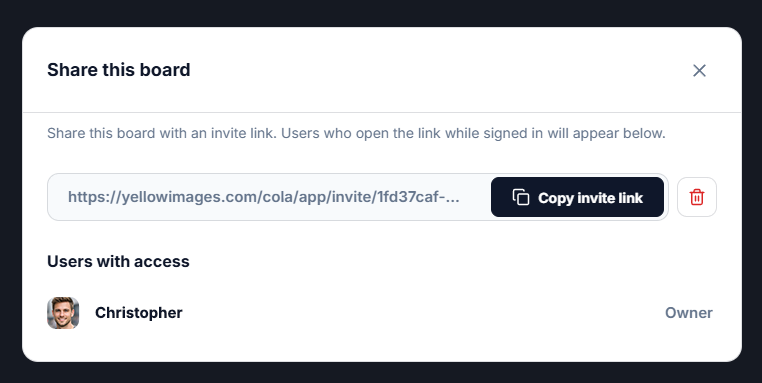
3. See who has access
Teammates must sign in before opening the shared board. After joining, they appear as Viewers under Users with access.
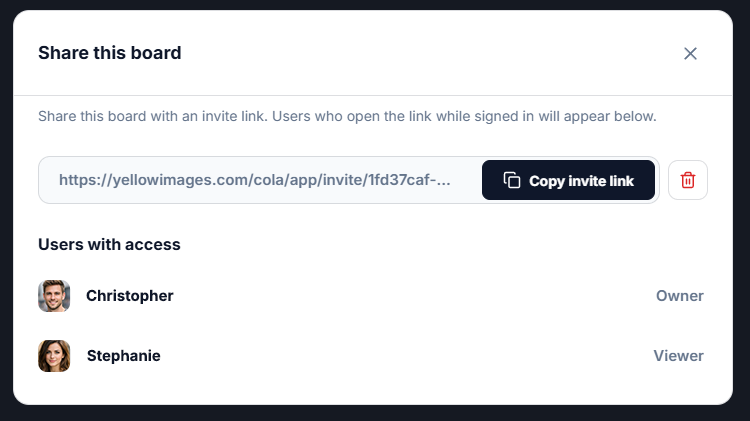
4. Review the board together
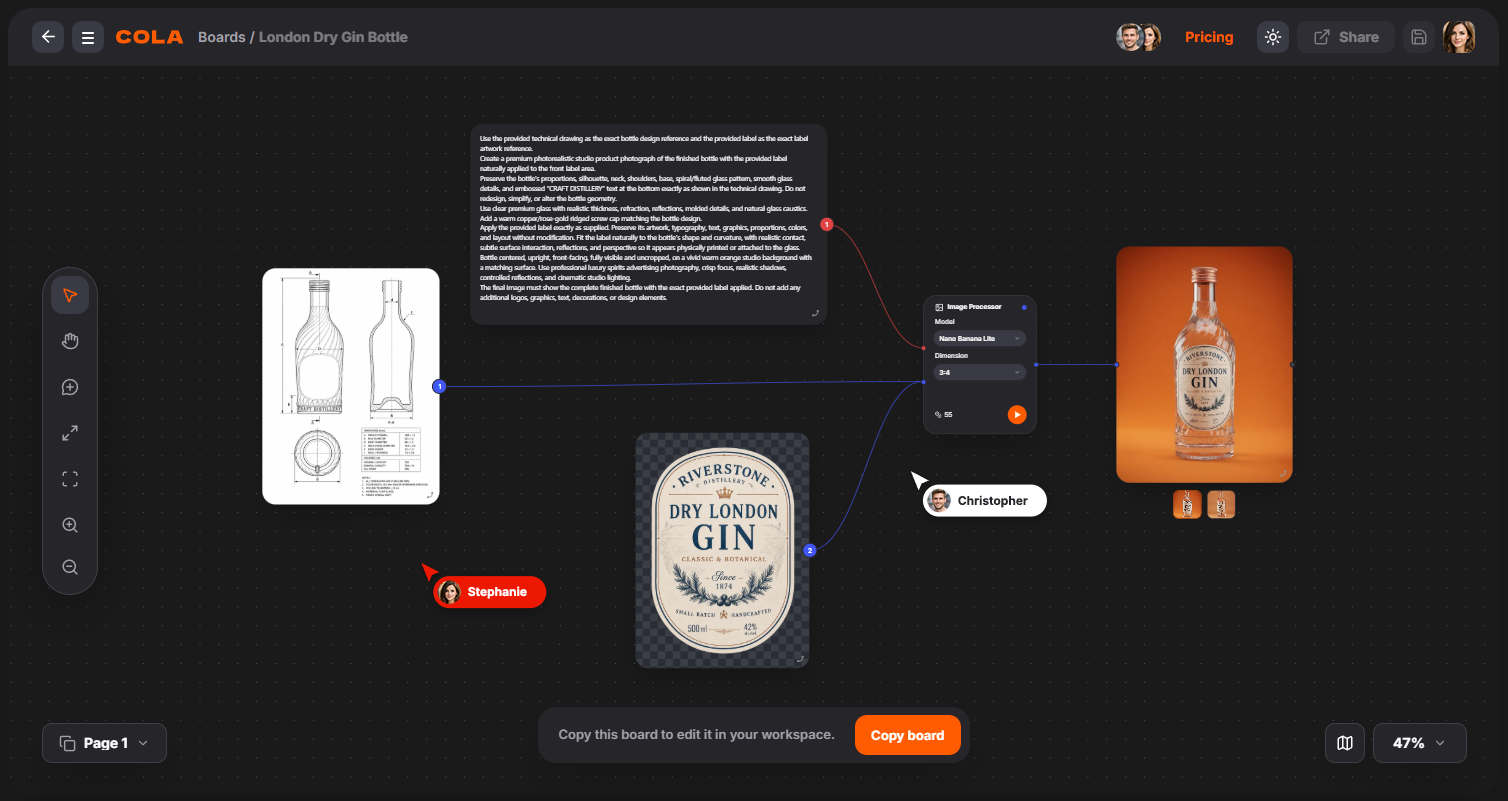
Viewers can navigate the canvas, inspect nodes, download available media, and leave comments. They cannot add, move, edit, or delete board elements, or run workflows. Changes made by the owner appear live while everyone has the board open.
5. Leave feedback on the canvas
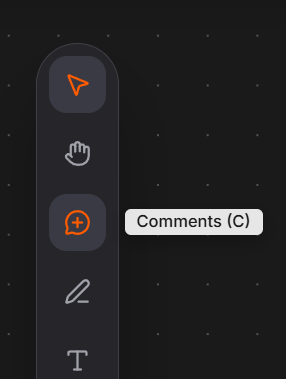
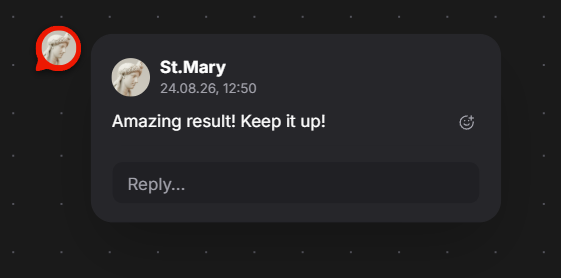
Select Comments in the left toolbar and click where the feedback belongs. Type your comment and click Send.
6. Reply and react
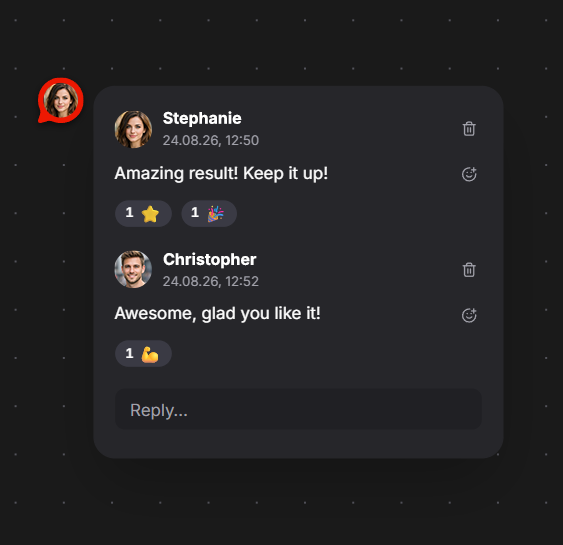
Continue the discussion inside an existing comment thread. Add a reply or use an emoji reaction to respond quickly.
7. Create an editable copy
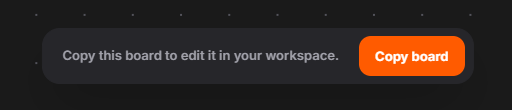
If a Viewer needs to make changes, click Copy board in the bottom action dock. COLA creates an independent board that the Viewer can edit.
8. Stop sharing
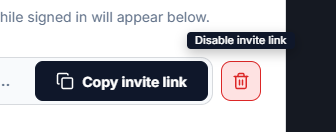
Open Share and click Disable invite link to deactivate the link and remove Viewer access.
Ready to collaborate
Share your next board, collect feedback next to the work, and keep every discussion connected to the workflow.