Work with templates
Reuse complete workflows and adapt them to a new creative task.
1. Open Templates
Go to /cola/app and select Templates in the sidebar.
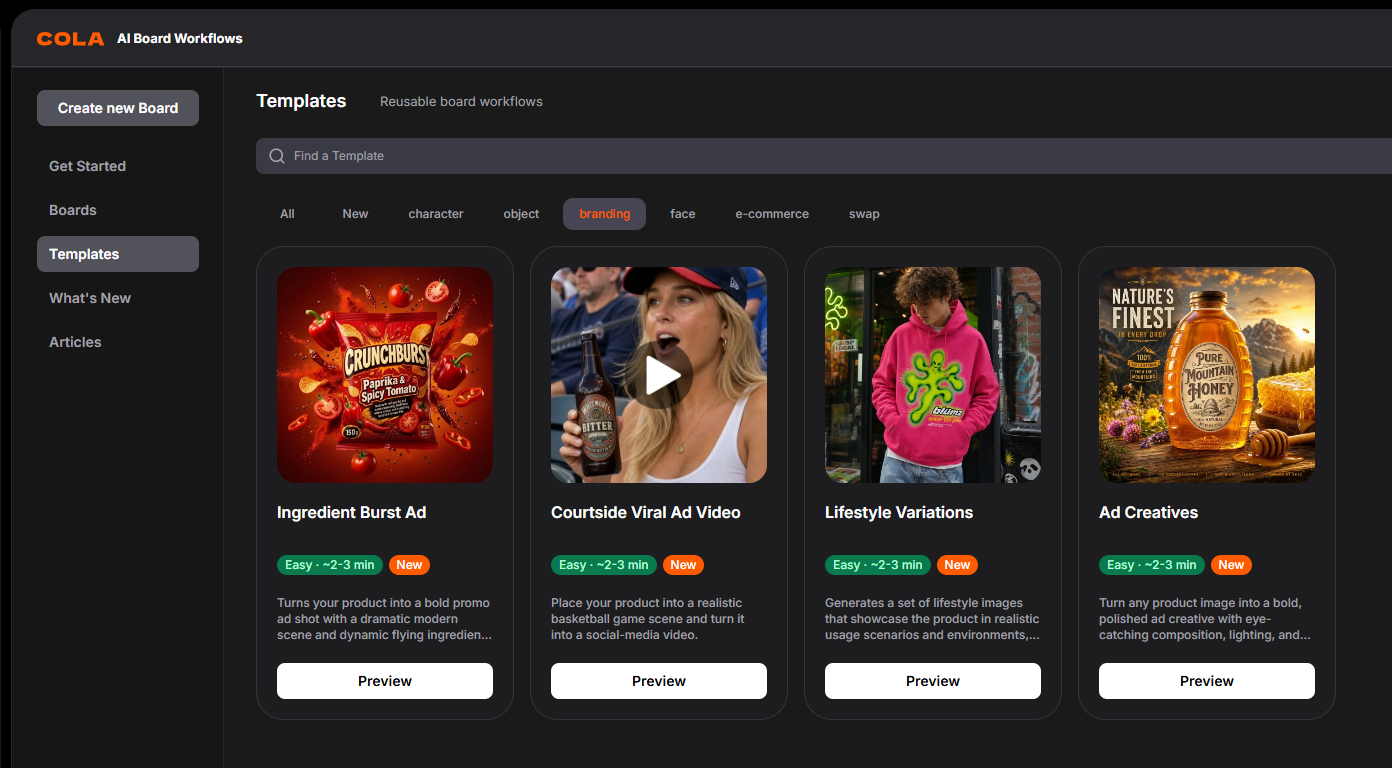
2. Find a template
Use search and categories to find a workflow that matches your task. You can bookmark templates you want to use later.
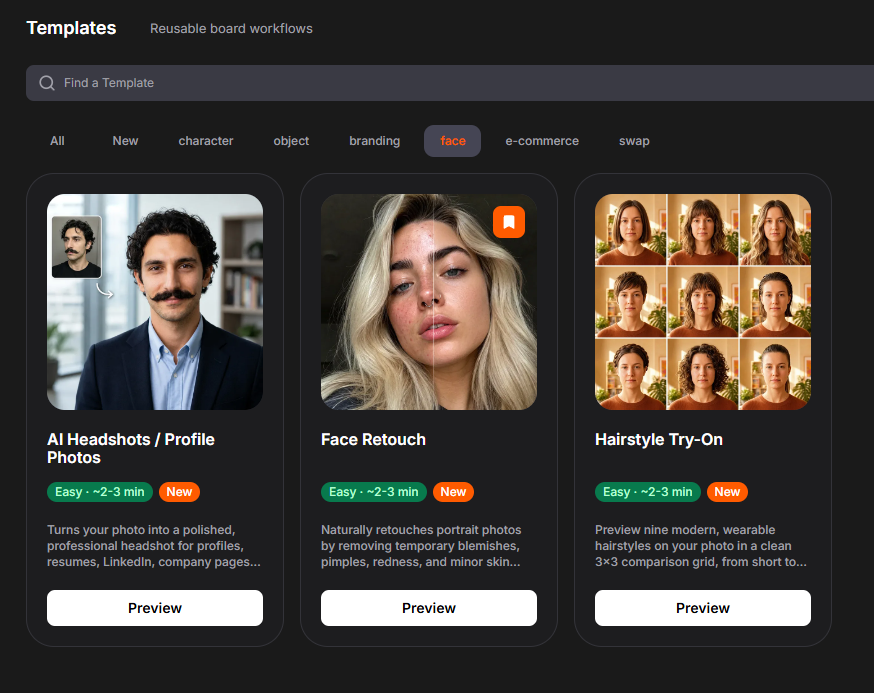
3. Preview the workflow
Click Preview to explore a read-only example of the board and see its inputs, workflow, and expected results.

4. Create your own copy
Click Use this template in the bottom action dock. Sign in or create an account if prompted. COLA will create and open an editable copy in your workspace.

5. Add and connect your inputs
Replace the example content with your own Text, Image, or Video inputs, then connect each source node to the matching socket on the Template node. Required inputs must be connected before the template can run.
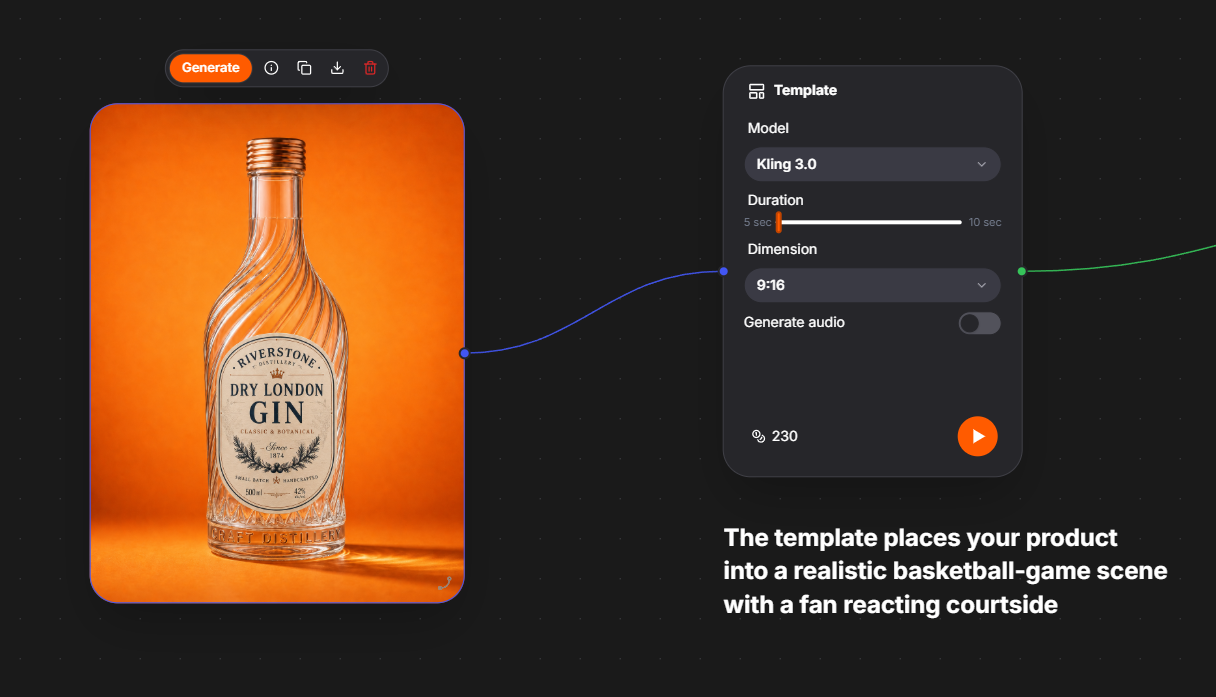
6. Run the template
Click Run on the Template node and wait for the results to appear in the connected result nodes.
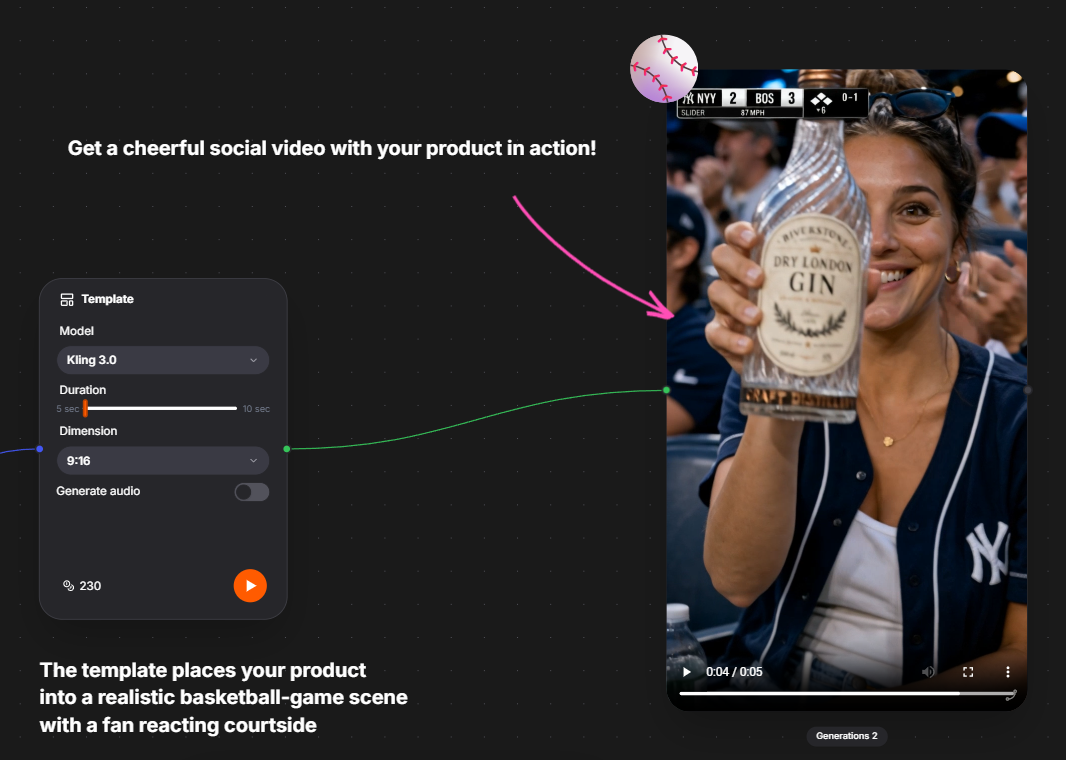
7. Add a template to an existing board
For a faster workflow, open Templates from the bottom dock of any board. Click Use template or drag a template card onto the canvas to add it as a Template node.

Open popup with Templates
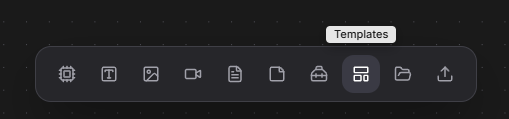
Click Use template button to add template node to the board
8. Configure the Template node
Add and connect the required inputs, adjust the available settings, and click Run. This lets you use a template without copying its preview board.
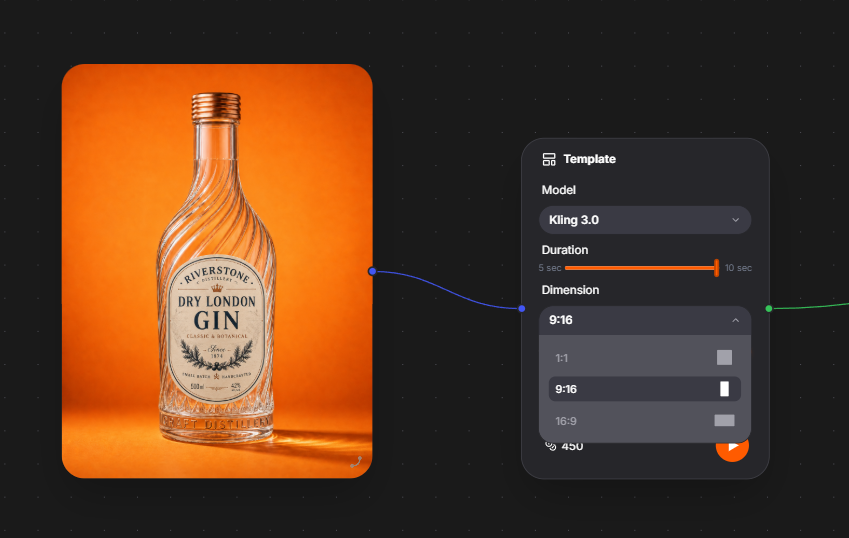
Your template is ready
Return to your board whenever you want to try new inputs, adjust the settings, or generate another result.